Jiří Filip
 Downloading a Mac app is often more confusing than it should be.
Search for a popular utility or messaging client and you may see several routes that all look plausible: the Mac App Store, the developer’s website, a software directory, a GitHub release, or a sponsored result positioned above everything else.
Sometimes more than one of those routes is legitimate. Sometimes only one of them is.
That is why “Is it in the App Store?” is no longer the most useful question to ask. A better one is: Can I trace this copy of the app back to the developer that actually makes it?
For Mac users, that small shift in thinking makes software downloads much easier to evaluate.
The App Store is the easiest route, but not the only legitimate one
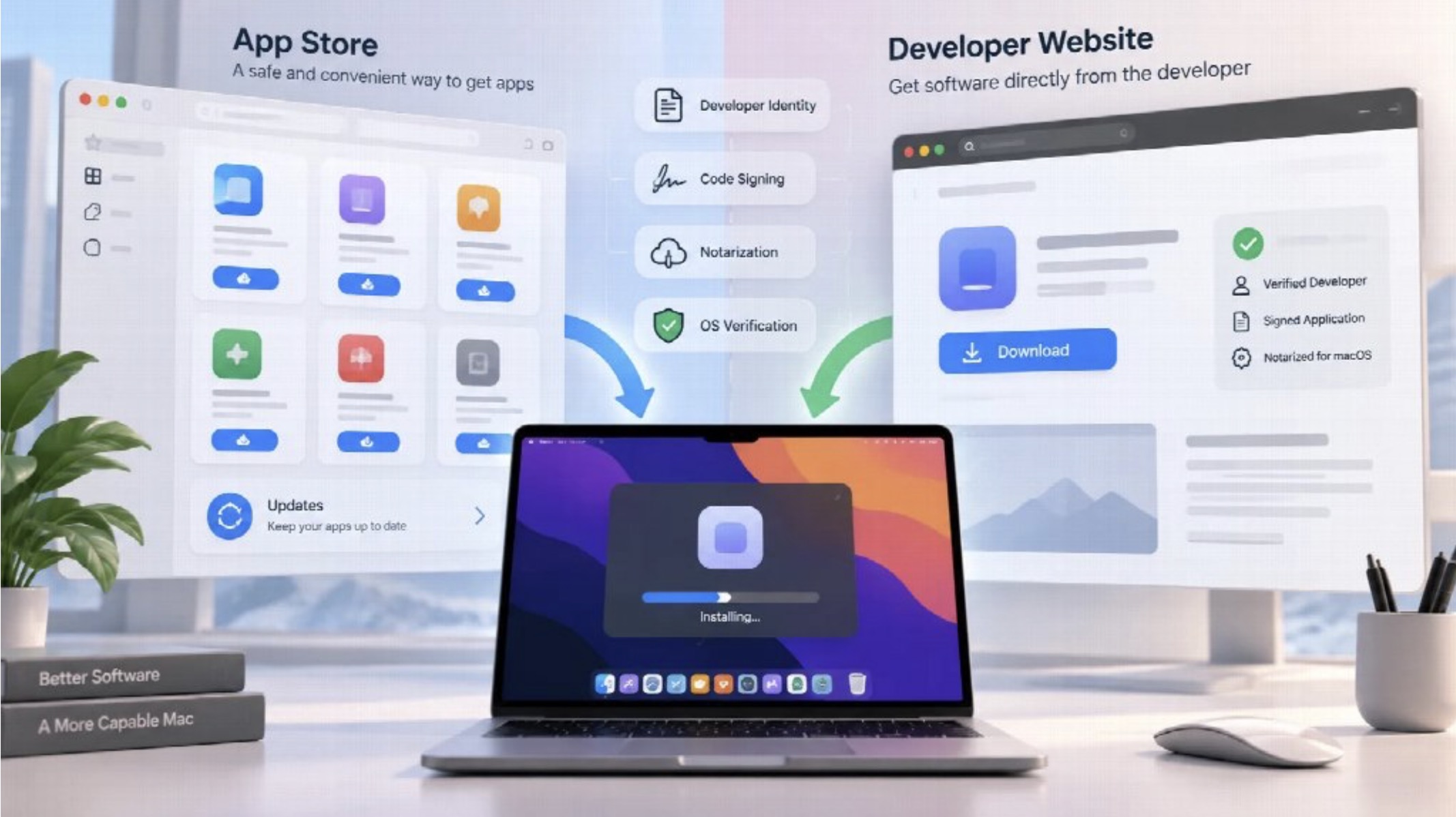
For many people, the Mac App Store is the obvious place to start. Apple controls the storefront, handles the distribution process, and provides a familiar update mechanism.
That convenience matters.
But plenty of legitimate Mac software is distributed directly by developers. Creative tools, development utilities, communication apps and specialist software often have downloadable versions on their own websites, sometimes alongside an App Store edition.
macOS is designed to support this model.
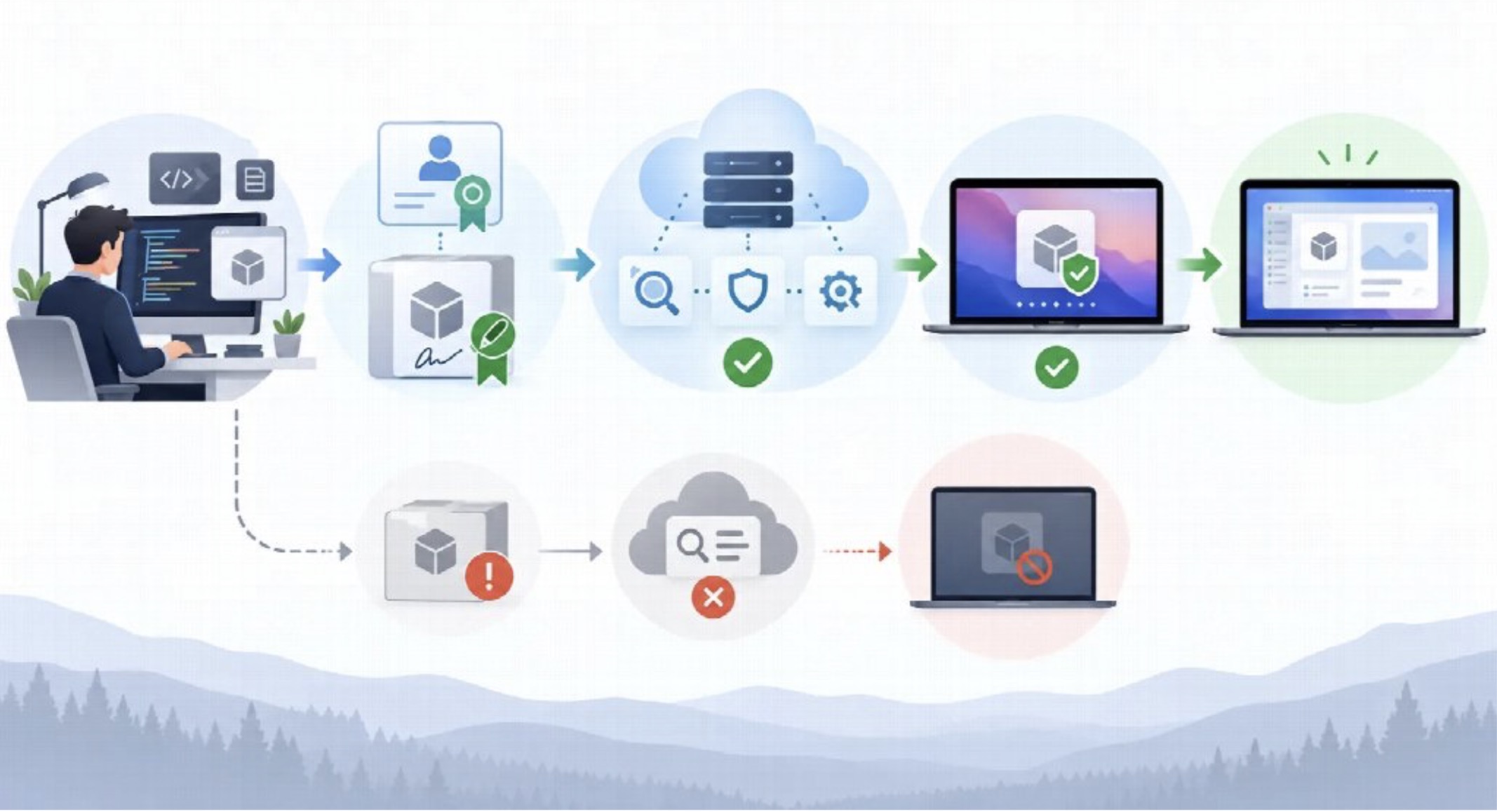
Software distributed outside the App Store can still be signed with an Apple-issued Developer ID and submitted for notarization. Gatekeeper then uses that information when the app is first opened.
In other words, “downloaded from the web” and “untrusted” are not the same thing.
What matters is whether the download path makes sense and whether macOS can verify the software identity it expects to see.
The domain deserves more attention than the page design
A professional-looking download page is not strong evidence by itself.
Product logos can be copied. Screenshots can be reused. A website can put words such as “official,” “secure,” or “latest version” in a headline without having any relationship with the developer.
The hostname is harder to ignore.
Before downloading anything, check the actual domain in the browser. If you arrived from Google or another search engine, do not rely only on the page title or favicon. Look at where the link has taken you.
This is especially useful with widely searched communication apps, where official pages, mirrors, download portals and lookalike sites can appear in the same set of results. Traditional Chinese users checking the official web entry for Telegram, for example, can use the Telegram 官網 as a reference point before comparing Mac, desktop or web clients.
That is the right role for an official site: not merely to provide a download button, but to show users where the legitimate versions of a product actually live.
A third-party download site changes the trust chain
Third-party software directories are not automatically dangerous. Some are useful for discovery, archived versions or editorial reviews.
The important difference is that they add another party between the developer and the user.
If an application is already available directly from its developer, downloading it through an intermediary raises a few extra questions:
- Is the original installer being redistributed unchanged?
- Is the download wrapped inside another installer?
- Is the listed version still current?
- Will future updates come from the original developer?
- Does macOS still identify the expected developer when the app is opened?
Those are practical questions, not theoretical security exercises.
A direct download from the developer gives you a shorter chain to verify. A third-party download may still be legitimate, but it asks you to trust one more organization.
Gatekeeper is useful precisely because websites can be misleading
Users sometimes treat Gatekeeper warnings as annoying obstacles. In reality, they are part of the information macOS gives you about a piece of software.
The operating system can check whether an application is signed by an identified developer and whether it has been notarized by Apple. It can also detect certain changes to signed code after the developer prepared it.
That does not turn every signed app into a guaranteed-safe app. No platform mechanism can make that promise.
What it does provide is provenance.
If you thought you were downloading an application from a well-known developer and macOS suddenly reports an unexpected developer identity, that discrepancy is worth investigating before clicking through anything.
The warning is not the problem. The mismatch is the useful clue.
Notarization and App Store review are different things
This distinction is easy to miss.
An app distributed through the Mac App Store goes through Apple’s store submission process.
An app distributed directly from a developer website can follow a different route: the developer signs it using Developer ID and submits it for notarization so that it can work with the normal macOS security model.
Those are two different distribution paths.
Neither should be described simply as “Apple approved” without qualification, because the processes are not identical.
For users, the practical takeaway is simpler: the absence of an App Store listing does not automatically make an application unofficial, just as a familiar-looking download page does not automatically make it legitimate.
You still need to connect the software back to the developer.
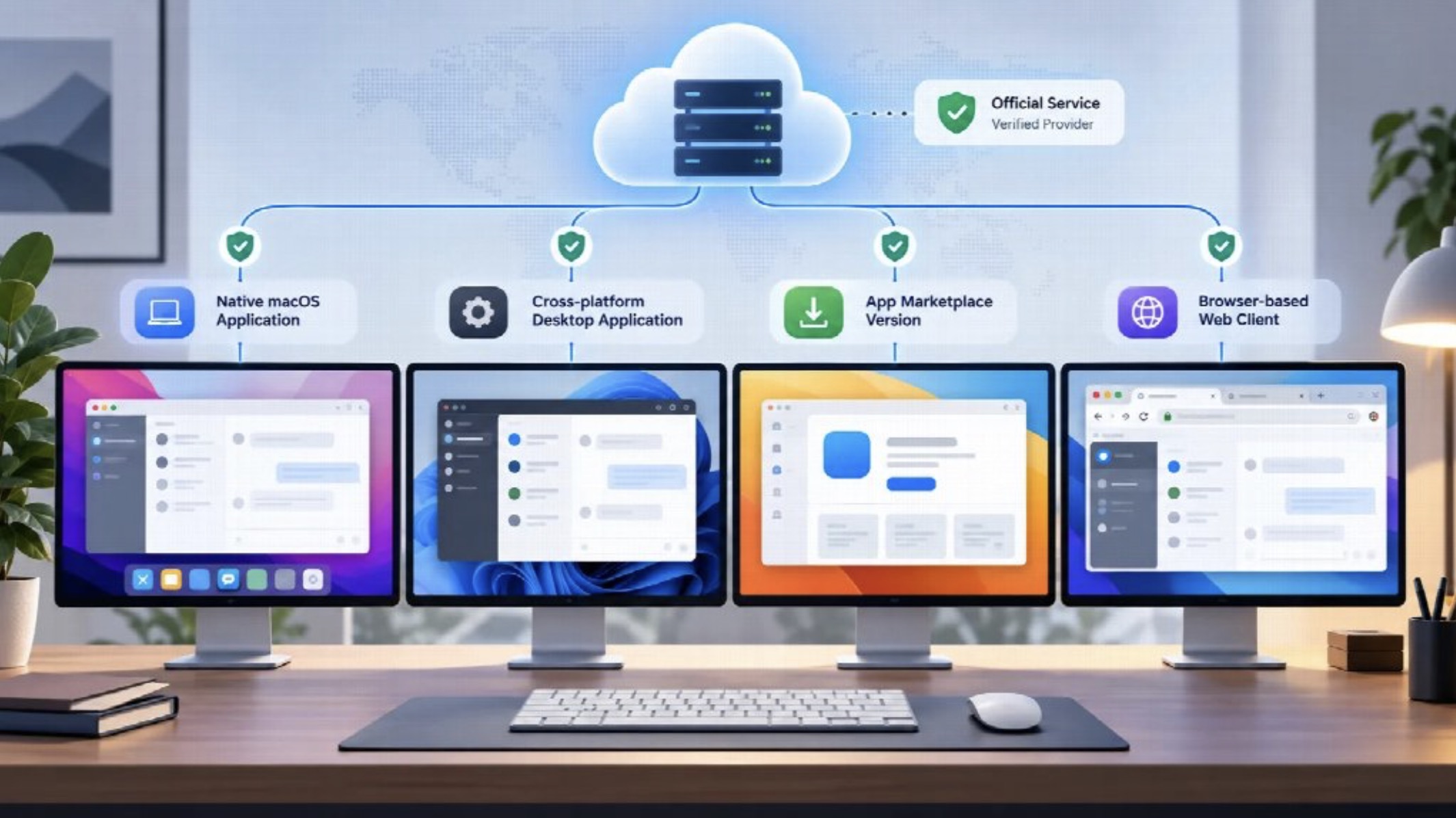
One service can have more than one official Mac client
Another source of confusion appears when a company maintains several clients at the same time.
Users naturally expect one service to have one “correct” Mac app. In practice, that is not always how software evolves.
A company might maintain:
- a native macOS application;
- a cross-platform desktop client;
- a Mac App Store build;
- a browser version.
These clients can belong to the same service while using different frameworks, interfaces or release schedules.
Telegram is a good example because Mac users have encountered more than one official client associated with the same service. That can look suspicious if you judge only by the names shown in a search result or app listing.
The safer approach is to step back and verify how the service itself describes its available clients. Traditional Chinese readers who want to check that relationship before choosing a version can consult a Telegram 官方網站指南 and then follow the distribution path that matches the client they actually need.
This is much more reliable than assuming that the first result with the correct logo must be the right installer.
The official website should make the choices clearer
A well-maintained software website usually does more than host a file.
It should help users understand the available versions.
If a service offers separate Mac, desktop and web clients, the site should make it reasonably clear which is which. It should also give users enough information to understand whether they are downloading a native macOS app, a broader desktop build or simply opening a browser client.
Before installing, it is worth checking a few basic points:
- Is there a dedicated macOS version?
- Is an App Store version available?
- Is the desktop client shared across Windows, macOS and Linux?
- Does the developer offer a web version?
- How are updates delivered?
- Where are release notes or version information published?
These details tell you more about the software than a generic “Download for Mac” button ever could.
Updates are part of the trust decision too
A clean first installation is only the beginning.
Apps change constantly. New macOS releases arrive, security fixes are issued, and developers update compatibility requirements.
That means users should also know how a particular application is supposed to update.
For one app, updates may come through the Mac App Store. Another may include an internal updater. A third may send users back to the developer’s website for a new package.
There is no single correct model.
The useful part is knowing what is normal.
If an application that normally updates itself suddenly opens an unfamiliar website and tells you to download an “urgent patch,” that deserves more scrutiny than an update delivered through its usual channel.
The update path is part of the software supply chain.
Be careful with instructions that start by disabling protections
Advanced Mac users sometimes have legitimate reasons to run unsigned development builds, internal tools or older software that macOS does not recognize normally.
That is different from ordinary consumer software.
If a tutorial for a mainstream application immediately tells users to disable Gatekeeper or weaken system-wide security settings, verify the source before following the instructions.
A better troubleshooting sequence is:
- Confirm that you downloaded the correct application.
- Check the developer-controlled website.
- See whether a newer signed or notarized version exists.
- Compare the developer identity shown by macOS with the one you expected.
- Look for official installation instructions.
Turning off a protection mechanism should not be the first attempt to solve a download problem.
Permissions can reveal whether an app behaves as expected
The installation source is important, but so is what the application asks to do after launch.
Context matters here.
A messaging client requesting notification access is unsurprising. A video conferencing app may reasonably ask for camera and microphone access. Backup software may need broader file permissions.
The question is whether the request matches the job the app claims to perform.
If a simple menu-bar utility suddenly wants access to unrelated parts of the system, do not approve the request just because macOS presents an Allow button.
Permissions are useful precisely because they give the user another chance to ask: Does this behavior fit the software I thought I installed?
A one-minute check is usually enough
Most users do not need to perform a forensic analysis before installing every Mac app.
A short routine is enough to catch many obvious problems.
Check the domain first.
Then compare the developer identity with the company or project you expected.
Let Gatekeeper show you what macOS knows about the application.
If several official versions exist, find out what each one is for instead of choosing based on the name alone.
Finally, check how the software will be updated.
That entire process can take less than a minute once it becomes a habit.
More importantly, it works across almost every kind of Mac software.
Trust is easier when the path is traceable
The Mac software ecosystem is deliberately more flexible than a single-store model.
The App Store offers a controlled and convenient distribution route, while Developer ID, notarization and Gatekeeper allow legitimate developers to distribute software directly as well.
That flexibility is useful. It also means users need to pay attention to provenance.
A familiar icon is not provenance.
A convincing download page is not provenance.
Even a product name that looks exactly right is not provenance.
What matters is whether you can follow a sensible path from the developer, to the distribution channel, to the application macOS is actually opening.
Once you start checking software that way, the old question — “Is this in the App Store?” — becomes less important.
The better question is:
Can I verify who distributed this application, who signed it, and where its future updates will come from?
For most Mac users, that is the distinction that matters.


 Patrik Pajer

 Jablíčkář

 Vratislav Holub