Jiří Filip
Komerční sdělení: Most Mac users already edit with machine learning, often without noticing. When the Photos app straightens a horizon, separates a person from the background or finds every picture of the same dog, a trained model is doing the work. The difference in recent years is that these models no longer just sort and select. They can now change what is in the picture.
That raises a practical question for anyone with a photo library on a Mac. Which jobs can the built-in apps handle well, when is a dedicated editor worth opening, and where does a newer type of tool fit in, the kind that edits a photograph from a written instruction? The answer depends less on the software brand than on what kind of change the photo needs.
The Photos App Does More Analysis Than It Shows
The Photos app looks like a simple viewer with a handful of sliders, but much of its intelligence sits underneath the interface. It recognises faces, objects, scenes and text in images, and that recognition powers search, Memories and the option to copy a subject out of its background with a right-click.
The editing panel benefits from the same analysis. The Auto button does not apply a fixed preset. It evaluates exposure, contrast and colour for each photo individually, and the Light, Colour and Black & White controls each have their own automatic setting that responds to the content of the frame. For everyday corrections such as a dull sky, a slightly dark interior or a yellow cast from indoor lighting, these tools are fast and usually good enough.
Photos also edits non-destructively. Every change can be reverted to the original at any time, even months later. That safety net is easy to take for granted, and it is worth keeping when the editing moves to other tools.
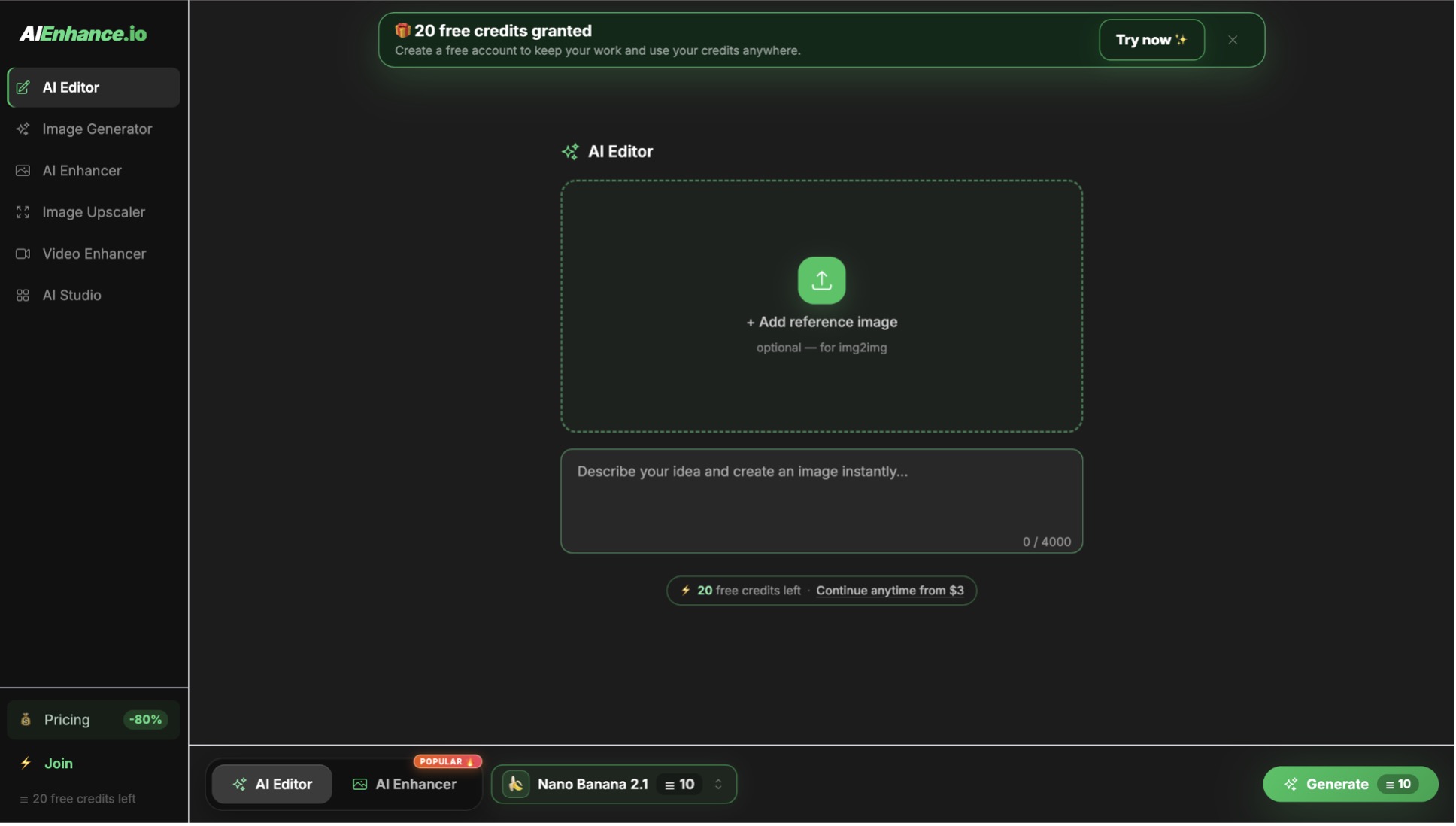
What Photos does not offer is local control. There are no masks or layers, and no way to brighten one face without affecting the rest of the frame. Once an edit needs to treat one part of the picture differently from another, the built-in app reaches its limit. Dedicated editors solve this with masks, as described below. A quicker route for a single change is a browser-based AI Editor, which takes the change as a written instruction, for example “brighten the face on the left and leave the background as it is”, and runs in Safari without installing an application. The result is a generated interpretation, so it still needs a check at full size.
Clean Up Works Best on Small, Separate Distractions
On Macs that support Apple Intelligence, the Photos app includes Clean Up. It suggests objects that look like distractions and lets you click, brush or circle anything else you want removed. The app then fills the area with content that matches the surroundings. Availability depends on the Mac model, the macOS version, the system language and the region, so not every Mac shows the tool.
Clean Up is at its best with small items against a fairly uniform background: a stray tourist on a beach, a cable across a wall, a coffee cup at the edge of a table. Results get weaker as the removed area grows or the background gets more complex. Removing a person from in front of patterned tiles, railings or text often leaves smudged or repeated structure, which is easy to spot when the image is viewed at full size.
It is also a removal tool and nothing more. It cannot replace a sky, add an object, change the time of day or alter someone’s clothing. Those requests need a different kind of model. The prompt-based editors described later in this article are built for exactly these requests.
Preview and Finder Handle the Quick Jobs
Some tasks don’t justify opening an editor at all. Preview can crop, resize, rotate and adjust colour, and it converts between formats such as HEIC, JPEG and PNG through File > Export. Recent versions of macOS can also remove a background directly from Finder through Quick Actions. This is handy when a product photo or a portrait needs a transparent PNG for a presentation.
Automatic background removal works well when the subject has clean edges and good contrast against what is behind it. It struggles with fine hair, fur, glass, smoke and objects whose colour is close to the background. For a slide or a quick mock-up the result is usually fine. For a printed product catalogue, the edges deserve a closer look.
Dedicated Editors Bring Local Masks and Machine Learning
When an edit needs selective control, third-party editors fill the gap the Photos app leaves. On the Mac, Pixelmator Pro, Adobe Lightroom and Photoshop are the most common choices, and each now includes machine-learning features alongside traditional tools.
Pixelmator Pro runs its ML Super Resolution, ML Denoise and ML Enhance features on the Mac itself, using Apple’s Core ML framework and the Neural Engine in Apple silicon. Lightroom can mask the subject, the sky or individual people automatically, so you can adjust each one separately, and its AI denoise also runs locally. Its Generative Remove feature, and Generative Fill in Photoshop, use Adobe’s cloud service instead.
These applications reward experience. Masks, layers and blend modes give precise results, but they take time to learn, and most of the editing still happens by hand, region by region. For photographers who edit regularly that investment pays off. For someone who wants to change one photo for a family album or an online shop listing, it is often more than the task requires.
Prompt-Based Editing Changes the Starting Point
A newer category of editor skips sliders and selections and starts from a sentence. You describe the result you want, for example “make it look like late afternoon, with warmer light on the facade and longer shadows”, and an image model produces a version of the photo with that change applied. Background replacement, relighting, removing or adding objects and restyling a scene can all be requested in the same way.
These tools usually run in the browser, which suits the Mac well. A large display makes it much easier to compare the original and the result side by side, and to zoom in on edges, hands and text where generated changes tend to go wrong. Most of them work in Safari or any other browser without installing an application: you drag the photo into the page, describe the change and download the result as a new file. Because the processing happens on a server, it is sensible to check how a service handles uploaded files before you use it for private or confidential pictures.
The quality of the result depends heavily on the instruction. Vague requests such as “make it better” leave the model too much freedom and often change things you wanted to keep. Specific requests work better, especially when they state what must stay the same: “replace the overcast sky with a clear blue one, keep the trees and the building unchanged”. When a result is mostly right but one area is wrong, a short follow-up about that area usually beats rewriting the whole prompt.
Generative edits are interpretations, not measurements. The model invents plausible pixels, so lettering on signs, the shape of hands, patterns on fabric and reflections in windows need a careful check. It is normal to generate two or three versions and keep the one that holds up at full resolution.
On-Device and Cloud Processing Suit Different Photos
Apple silicon made local machine learning genuinely fast. Denoising, upscaling and subject selection that once took minutes now finish in seconds on a laptop, and the photo never leaves the machine. For confidential material, documents, or photos of other people’s children, that matters.
Cloud processing has the advantage of model size. The largest generative models need more memory and compute than a laptop provides, so tasks such as replacing a whole background or changing the lighting of a scene usually run on a server. The trade-off is privacy and dependence on a connection. The two approaches coexist in practice: quick corrections and sensitive files stay local, and heavier generative edits go to a cloud tool when the photo is suitable for upload.
Colour Management Still Matters After an AI Edit
Modern Mac displays show the wide P3 colour space, and photos from recent phones and cameras often contain colours outside the older sRGB range. When an edited photo is exported for the web, a mismatch between colour spaces can make it look duller or slightly shifted on other screens.
For images that will be published online or sent to people on other devices, exporting in sRGB is the safest choice. Preview’s Export dialog and most editors let you set the colour profile, and the Export dialog in Photos offers a Most Compatible colour profile that converts to sRGB. If an AI-edited image looks different after download, compare it with the original on the same screen before assuming the model changed the colours.
Display settings affect judgement too. True Tone and Night Shift shift the screen’s colour temperature, which is comfortable for reading but misleading for colour work. Turn them off temporarily when colour accuracy matters.
A Mac Workflow That Keeps the Original Safe
The safest approach combines the strengths of each tool and protects the source file at every step:
- Make basic corrections in Photos first, since they can always be reverted.
- Use Clean Up for small distractions, and a dedicated editor when only part of the image needs adjusting.
- For larger changes, export a copy with File > Export > Export Unmodified Original and use that copy in the AI tool.
- Inspect the result at full size, paying particular attention to edges, text and faces.
- Import the edited version back into Photos as a separate image, and add a keyword such as “AI edit” so it is easy to find later.
That last step is worth the extra click. A photo library is a long-term record, and a few years from now it helps to know which pictures show a scene as it was and which were changed afterwards. For anything used as documentation, such as the condition of a product, a property listing or an insurance claim, material generative changes should be disclosed. Removing dust from a lens is retouching. Adding a sunset that was never there is a different kind of edit, and the people looking at the photo deserve to know.





 Patrik Pajer